

[[Part 2 of this article is here: Link]]
So when I was visiting Anna in Edinburgh during March Break, she showed me how she used Password-Protected OneNote sections within the OneNote ClassNotebook to help students check their work — she set the password to the correct answer, so they knew they had it right when the Section opened up.
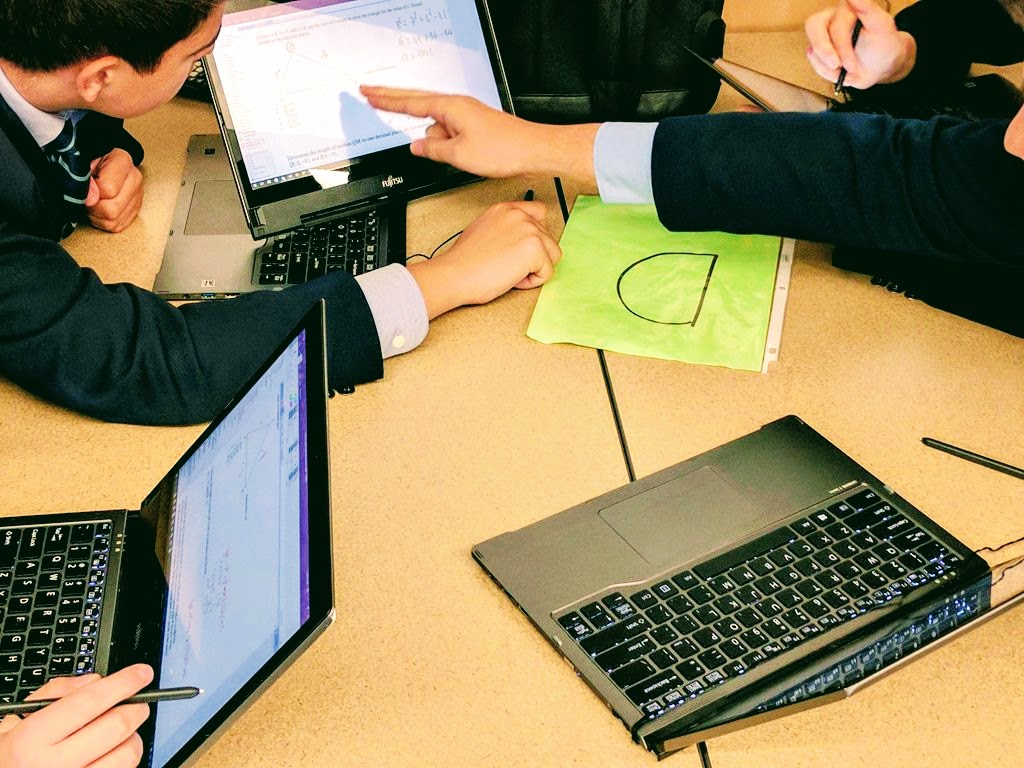 Result?
 Things to improve:
- I put way too many questions in for an hour-long class. Half as much likely would have been good — this would have cut down on my prep time, too. I had assumed they would divide & conquer in their table groups but even when they said they were going to do that, they ended up solving all the problems together. This surprised me — I thought they would be more mercenary. I also thought there would be more sharing between groups (even though it was phrased “the first group done wins a prize”) but they kept their cards close to their chest.
- I will likely add some more puzzle-like pages, questions & structures instead of just having multiple choice or short-answer questions. Maybe do an anacrostic, a fill-in for another clue, or a cipher/code with their answers that has to be undone. Using multiple choice lets you pick letters that spell something, or builds a larger question, for example. Now, that’s not precisely curriculum expectation focused, but it would add a problem-solving element and increase the fun-factor.
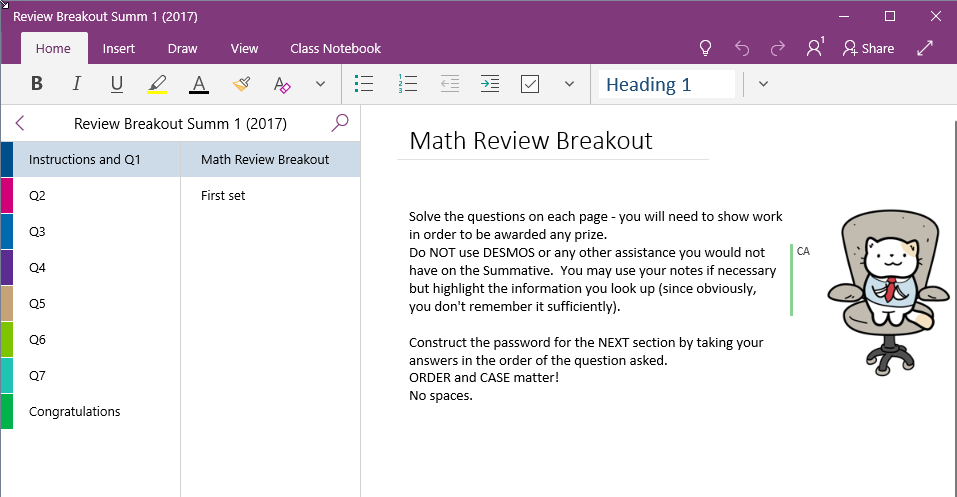 First, I created a OneNote notebook. Pretty easy. If you’re just reading this as a new OneNote user, go to www.onenote.com and you can create one for free there. Your students do not need OneNote to do this… when you’re done, just create a VIEW link to your OneNote and give that to the students, and they can use their web browser to view the pages and enter the passwords.
For you, be sure to download the application to your device — the web version is fine for the students to work in (and they don’t have to be 1:1), but you’ll want to use your device’s OneNote application to do the work in. It gives you a lot more functionality and creativity to play with.
 In that OneNote I created seven sections, one for each puzzle-set. Now, I think seven is likely too many… four would be better. Lesson learned. Each section had one page, but you could put separate questions on separate pages within the section. I just labelled the Sections Q1, Q2, etc but you could be more creative (and I should have been!)

I now went into each section, right-clicked the Section Name and chose Password Protection. This let me enter a password (twice) to lock the section. DO NOT forget the password as no-one can unlock it for you — IT will not be able, Microsoft will not be able, okay, maybe the TSA can.
 So I locked up all the Sections with the appropriate passwords and it was ready to go!

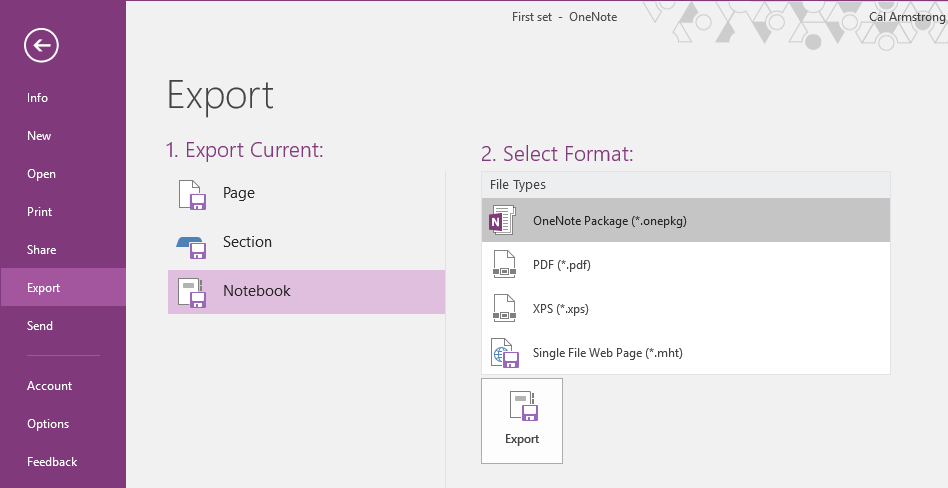
Now, you can just create a VIEW link for your students and have them work on paper or in another OneNote to do the problems. It’s always best to use a URL shortner, too.
Try this one: http://bit.ly/2dtrigreview
Feel free to use, edit, re-distribute. I’m not including the answers, of course 🙂
Let me know how things worked out!
Just as an addendum … I had to cover another teacher’s Grade 10 class and they asked me if I could put together a review Escape Room for the Quadratics Unit. I had enough time to pull together the questions and then had my own students do the answers and get the codes. You’re welcome to the Quadratic OneNote as well: https://doc.co/bwD67u

[…] Pingback: Escape Room / BreakOut in OneNote – OneNote School […]